
How to Run a Speed Test with Ookla’s CLI on the FD-IX Public Server

If you want a fast and straightforward way to test performance to FD-IX, Ookla’s Speedtest CLI is a simple tool you can use anywhere you have terminal access.
FD-IX has a public Ookla test server that lets ISPs, MSPs, and engineers measure actual throughput and latency across the exchange. You can use it to check your routing, look for congestion, and make sure your path into the IX is local. You can run the test from Linux, macOS, Windows PowerShell, routers with shell access, or even small lab devices.
If you don’t already have the CLI installed, grab it here:
https://www.speedtest.net/apps/cli
The command you need:
speedtest -s 71467
The -s flag forces the test to target server 71467, the FD-IX public Ookla endpoint. This bypasses auto-selection and keeps the test honest. You ask for FD-IX, you get FD-IX—no scenic detours through random servers.
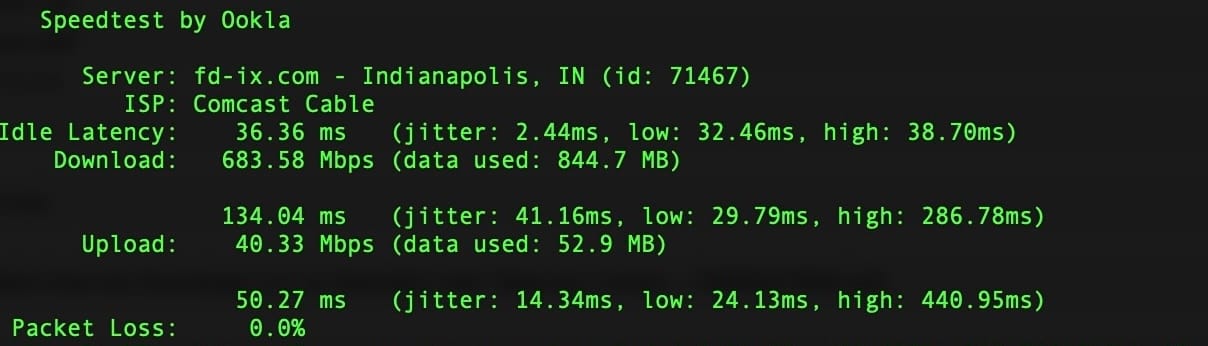
When you run the command, you’ll see ping, jitter, and the server details first. If anything looks off—latency jumps, jitter spikes, or a weird path—you already have something to chase. Then the download and upload phases kick in, showing if your link to FD-IX is healthy or if something upstream is choking it. Think of it as a quick truth serum for your routing.
ISPs can use this test to double-check handoffs. MSPs use it to confirm customer paths. Engineers use it to make sure traffic flows over the IX as expected. It is also useful after configuration changes, when setting up new routers, or when you need to show a coworker that the network is working and the issue is elsewhere.
Because the FD-IX server sits inside the exchange fabric, your results reflect the real performance of your interconnection. No fluff. No detours. Just plain throughput between you and where local traffic should stay.
Quick. Clean. Straight to FD-IX.